The 3-2-1 Backup Rule, Explained for Normal People
Three copies, two places, one off-site. A simple backup setup for your photos and files using tools you probably already have.
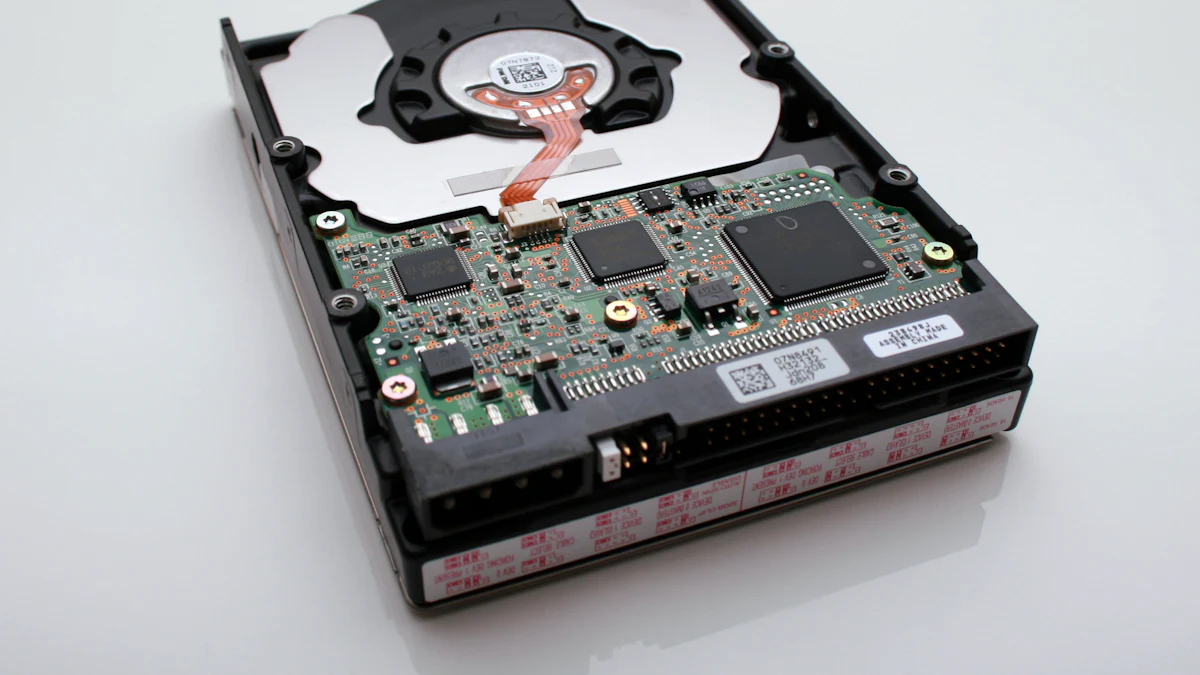
Hard drives fail. Laptops get stolen. Phones fall in the sea. Ransomware locks everything. And every one of those things feels impossible right up until it happens to you.
The 3-2-1 rule is the simplest way to make sure losing a device is an annoyance instead of a disaster.
What 3-2-1 means
- 3 copies of your important files (the original plus two backups)
- 2 different types of storage (for example, your laptop and an external drive)
- 1 copy off-site (somewhere that won't burn down, flood or get stolen along with your house)
That's it. Everything below is just how to set it up without spending a weekend on it.
Step 1: Decide what actually matters
You don't need to back up everything. Apps can be reinstalled. What you can't get back:
- Photos and videos
- Documents, school work, tax records
- Work projects
- Anything you created
For most people, that's the Documents, Desktop and Photos folders.
Step 2: Backup copy #1, an external drive
Buy an external hard drive at least twice the size of the files you're backing up. Then turn on your computer's built-in backup:
On a Mac: Time Machine. Plug in the drive, and macOS will ask if you want to use it for Time Machine. Say yes. It backs up automatically every hour while the drive is connected and keeps older versions of files, so you can go back to "this folder, last Tuesday".
On Windows: File History. Plug in the drive, open Settings and search for "File History", then turn it on and choose the drive. It saves copies of your files regularly, and you can restore earlier versions.
The key habit: plug the drive in regularly. A backup drive that sits in a drawer for six months isn't much of a backup.
Step 3: Backup copy #2, off-site in the cloud
This is the copy that survives fire, flood and burglary.
Option A: Your cloud drive. iCloud, Google Drive, OneDrive or Dropbox can sync your important folders. It's easy, and you might already pay for it. But careful: sync is not quite backup. If you delete a file or ransomware scrambles it, the change can sync everywhere. Check that your service keeps deleted files and old versions for a while. We compare the big ones in Google Drive vs Dropbox vs OneDrive.
Option B: A real backup service. Backblaze Personal Backup is the classic choice: it backs up your entire computer to the cloud automatically, with no storage limit, for about $99 a year per computer. You install it and forget it. When disaster strikes, you can download your files or even have them shipped to you on a drive.
Step 4: Test it once
Here's the step everyone skips. Once your backups are running, try restoring one random file. Just one. It takes two minutes and proves the whole thing actually works.

What about my phone?
Your phone counts too, especially for photos.
- iPhone: turn on iCloud Photos and iCloud Backup. You'll likely need more than the free 5 GB.
- Android: Google Photos backup and Google One backup for app data and settings.
Then occasionally copy your photos to your computer, and they'll be included in the 3-2-1 setup above.
The 20-minute version
- Buy an external drive.
- Turn on Time Machine (Mac) or File History (Windows).
- Sign up for Backblaze, or make sure your important folders sync to a cloud drive that keeps old versions.
- Restore one file to prove it works.
Do it this week. Future you, standing over a dead laptop, will be very grateful.