The Best Free Photo Editors (Photoshop Alternatives That Cost Nothing)
Affinity is now free, GIMP is mature, and Photopea runs in a browser. Here's which free photo editor fits quick fixes, design work and serious retouching.
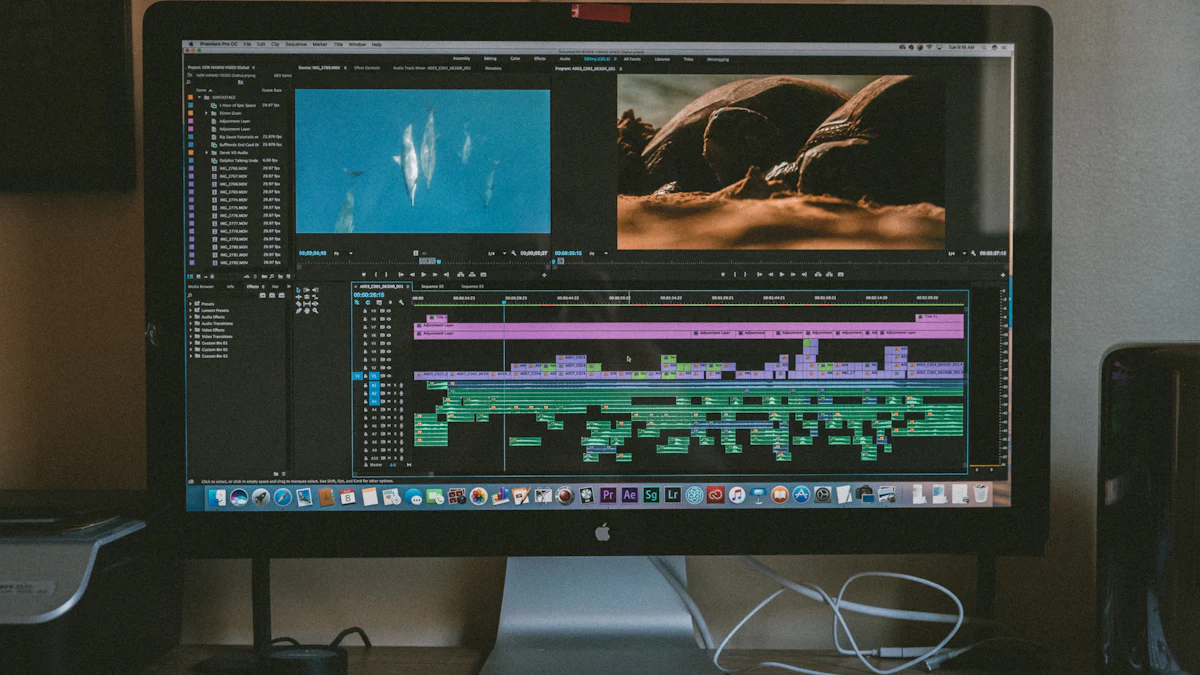
Something big changed recently: Affinity, the professional design suite many people bought to escape Adobe's subscription, became free after Canva acquired it. Add GIMP and Photopea, and there's never been less reason to pay for a photo editor if you're not a professional.
Quick picks
- Best overall free editor: Affinity
- Best open-source option: GIMP
- Best in a browser, no install: Photopea
- Best for quick fixes: the Photos app already on your computer
Affinity: professional tools, now free
Affinity is now a single app for Mac and Windows that combines what used to be Affinity Photo, Designer and Publisher: photo editing, vector illustration and page layout. It's fast, polished and handles layers, masks, RAW photos and Photoshop files.
You need a free Canva account to activate it. Canva's AI features inside Affinity require a paid Canva plan, but the core editing tools are free.
Pick it if: you want something that feels like Photoshop without the subscription.
 GIMP: free and open source forever
GIMP has been around for decades, and it's powerful: layers, masks, filters, retouching tools and plugin support. It's free, open source and runs on Windows, Mac and Linux, with no account required.
The catch: the interface works differently from Photoshop, so expect a learning curve. Photoshop file support is useful but not perfect.
Pick it if: you value open source, or you're on Linux.
 Photopea: Photoshop in your browser
Photopea looks and works remarkably like Photoshop, but it runs in a web browser. It opens PSD files, supports layers and adjustment tools, and works on Chromebooks and borrowed computers.
It's free with ads, and there's a small paid plan to remove them.
The catch: it's a browser tab. Save your work often. Close the tab by accident and unsaved work can be gone.
Pick it if: you need to open a PSD file right now, or you can't install software.
 Pixlr: quick edits with AI tricks
Pixlr is another browser-based editor, simpler than Photopea, with quick filters, background removal and templates. It's good for social media images in a hurry.
Don't forget what's already installed
For cropping, straightening, brightness and colour, the built-in apps are honestly enough:
- Mac and iPhone: Photos has good adjustment tools and object removal on recent versions.
- Windows: the Photos app includes cropping, filters and background tools.
- Android: Google Photos has strong one-tap edits.
Which should you use?
| You want to... | Use |
|---|---|
| Crop and brighten holiday photos | Built-in Photos app |
| Edit a PSD someone sent you | Photopea |
| Learn "proper" editing for free | Affinity |
| Use only open-source software | GIMP |
| Make a quick social media graphic | Pixlr, or see Canva vs Figma |
Want to generate images instead of editing them? See the best AI image generators.