Slow Wi-Fi? 10 Fixes That Actually Work (In the Right Order)
Find out whether it's your internet, your router or your device, then fix slow Wi-Fi step by step, from a proper restart to router placement and mesh.
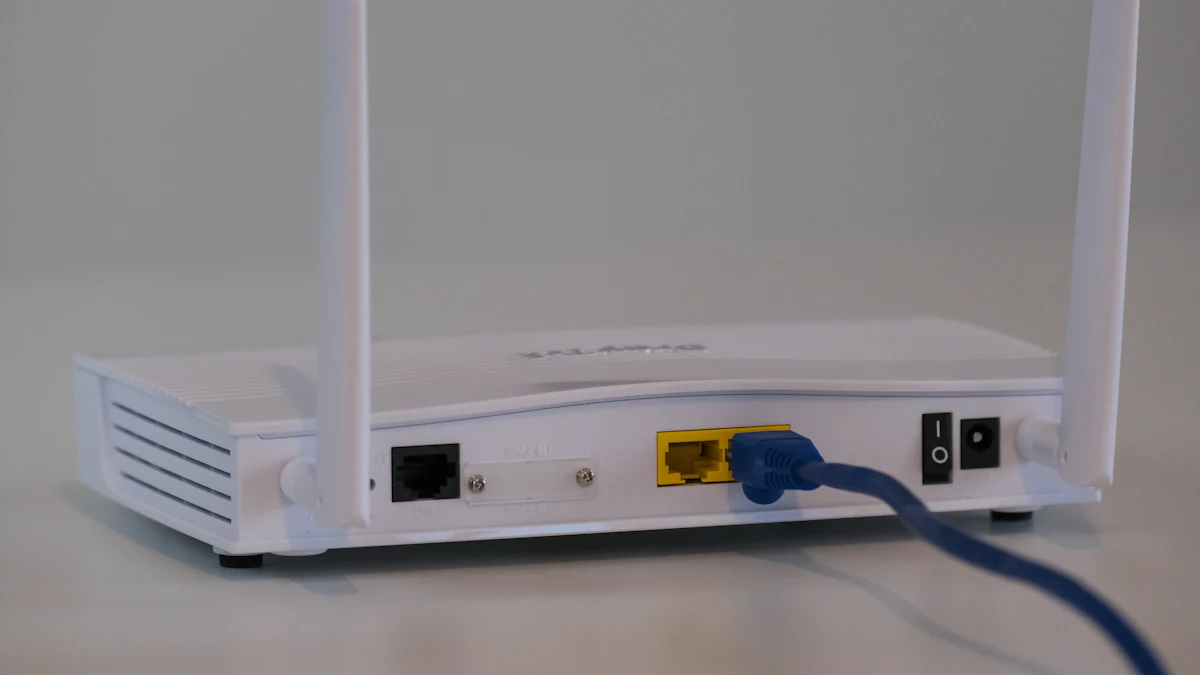
Before you call your internet provider or buy a new router, work out where the problem is. Slow Wi-Fi has three possible culprits: your internet connection, your router, or your device. These steps go from quickest and free to the bigger fixes.
Step 1: Run a speed test in two places
Run a speed test (search "speed test" in Google, or use speedtest.net or fast.com):
- Right next to your router.
- Where the Wi-Fi feels slow.
- Slow in both places? The problem is probably your internet connection or router. Go to Steps 2, 3 and 9.
- Fast near the router, slow elsewhere? It's coverage. Go to Steps 5 to 8.
- Only one device is slow? It's that device. Go to Step 4.
Compare the result with the speed in your internet plan. Wi-Fi rarely delivers the full plan speed, but it shouldn't be a fraction of it.
Step 2: Restart properly
Unplug both your router and modem (if they're separate) for 30 seconds, then plug the modem in first, wait for its lights to settle, then the router. It fixes a surprising number of problems.
Step 3: Check for something hogging bandwidth
Large downloads, cloud backups, game updates and 4K streaming on other devices can slow everyone down. Many routers' apps show which device is using the most data.
Step 4: Fix the slow device
- Forget the network and reconnect.
- Update the device. Old network drivers on Windows laptops are a classic cause.
- Turn off VPNs temporarily to test. A VPN routes traffic through another server and can slow things down. See do you actually need a VPN?
- Restart it. Really.
Step 5: Move the router
Router placement matters more than almost anything else:
- Central and high: on a shelf in the middle of your home, not on the floor in a corner.
- In the open: not inside a cabinet, behind the TV or next to a fish tank. Water and metal block Wi-Fi.
- Away from microwaves and cordless phones.
Step 6: Use the right band
Most routers broadcast on 2.4GHz (longer range, slower) and 5GHz (faster, shorter range). Newer ones add 6GHz (Wi-Fi 6E and Wi-Fi 7: fastest, shortest range). Close to the router, use 5GHz or 6GHz. Far away, 2.4GHz may be more stable.
Step 7: Change the Wi-Fi channel
In apartment buildings, dozens of networks compete for the same channels. Many routers choose automatically; if yours doesn't, try a less crowded channel in its settings.
Step 8: Fix dead zones with mesh Wi-Fi
If your home is big or has thick walls, one router can't cover it. A mesh Wi-Fi system uses several units placed around your home to create one strong network. It's usually better than cheap range extenders, which often halve your speed.
Step 9: Update or replace your router
- Update its firmware through its app or admin page.
- If it's 5+ years old, a new router (Wi-Fi 6 or newer) can make a big difference, especially with many devices at home.
- Renting the router from your provider? Ask if they have a newer model, often for free.
Step 10: Plug in when it matters
For gaming PCs, smart TVs and work-from-home desks near the router, an Ethernet cable beats Wi-Fi every time: faster, more stable and lower latency.
When to call your provider
If speeds are slow even with a computer plugged directly into the modem by cable, the problem is the internet connection, not your Wi-Fi. That's the moment to call them, with your speed test results ready.
Using your connection to stream? See the best streaming devices.