How to Speed Up a Slow Windows PC (Without Sketchy Cleaner Apps)
Most slow PCs have the same few problems. Fix them in this order, using only tools that come with Windows, before you think about buying anything.
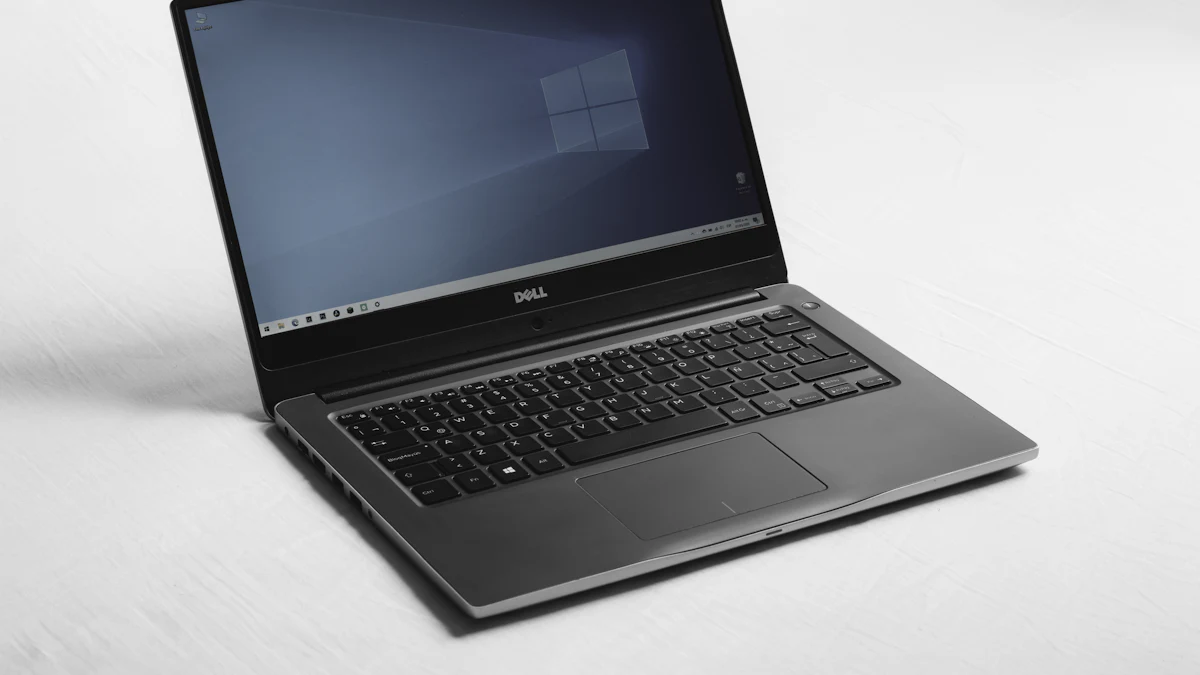
Before anything else: don't download a "PC cleaner" or "speed booster" app. Most of them do very little, some nag you to pay for fixes you don't need, and a few are outright malware. Everything below uses tools that already come with Windows.
Work through the steps in order. They go from "two minutes, big impact" to "costs money".

1. Restart it (properly)
Not shut down. Restart. On many Windows PCs, "Shut down" uses Fast Startup, which saves part of the system state and restores it on the next boot, so problems can survive a shutdown. Restart actually clears everything out.
If you haven't restarted in a week, do it now and see if the problem goes away.
2. Find out what's actually slow
Press Ctrl + Shift + Esc to open Task Manager, and click the Processes tab. Click the CPU, Memory and Disk column headers to sort by each.
You're looking for anything stuck near the top while you're not doing much. Common culprits:
- A browser with 60 tabs (it's always the browser)
- Antivirus doing a scan
- Cloud sync apps uploading a big folder
- An app you forgot you had open
If memory is constantly above 85 to 90%, your PC doesn't have enough RAM for how you use it. Remember that for step 7.
3. Turn off startup apps you don't need
Still in Task Manager, open Startup apps. Every app here launches when Windows starts and runs in the background.
Disable anything you don't need running all the time: game launchers, chat apps you rarely use, updaters for printers, "helper" tools. Right-click and choose Disable. You're not uninstalling anything, and you can turn them back on later.
This is often the single biggest speed-up for slow startups.
4. Uninstall what you don't use
Open Settings, Apps, Installed apps and sort by size or install date. Remove trial software that came with the laptop, old games, and anything you don't recognize after a quick search. Fewer apps means fewer background updaters and services.
5. Free up disk space
Windows slows down noticeably when the main drive is nearly full.
Go to Settings, System, Storage and:
- Turn on Storage Sense, which automatically clears temporary files and empties the Recycle Bin.
- Open Cleanup recommendations to find large files, unused apps and old downloads.
Aim to keep at least 15 to 20% of the drive free.
6. Update Windows and drivers, then scan for malware
Run Windows Update and install everything, including optional driver updates for your graphics card. Then open Windows Security and run a full scan. Malware that mines cryptocurrency or shows hidden ads can quietly use a lot of CPU.
Not sure if the built-in antivirus is enough? We answer that in Is Windows Defender Enough?
7. The hardware fixes (if you're still stuck)
If the PC is still slow after all of the above, the bottleneck is probably hardware:
- Still on a spinning hard drive (HDD)? Swapping it for an SSD is the best upgrade you can make to an old computer. It can make a 6-year-old laptop feel new.
- 8 GB of RAM or less and memory always full? More RAM helps a lot, if your laptop allows upgrades. Check the model's manual first.
What not to bother with
- Registry cleaners. They don't make a noticeable difference and can break things.
- Defragmenting an SSD. Windows handles SSD maintenance automatically.
- "RAM booster" apps. Unused RAM is wasted RAM. Windows manages it fine.
Most slow PCs are fixed by steps 1 to 5. That's 20 minutes, and it's free.