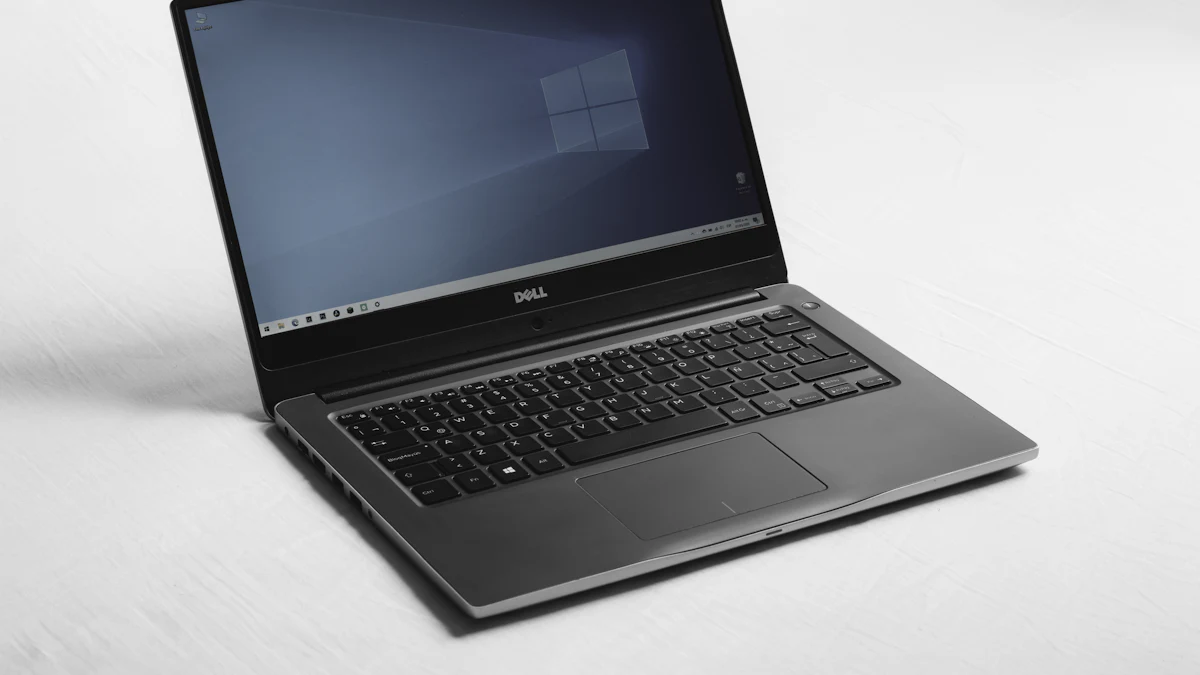
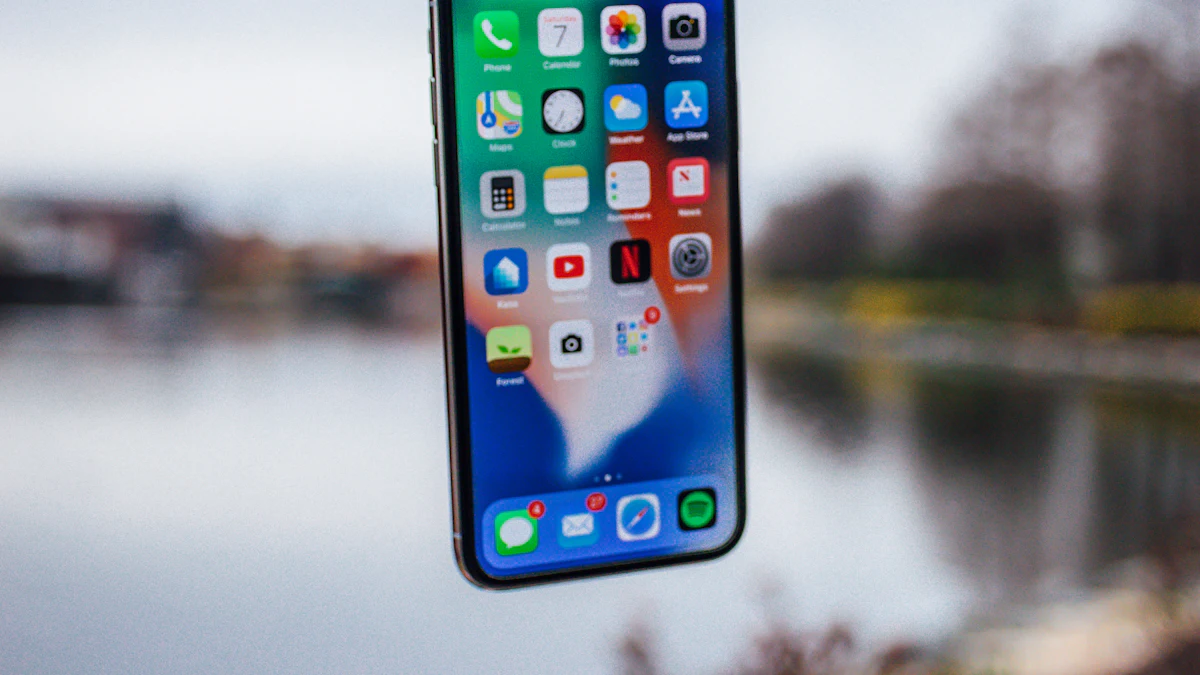
How to Transfer Photos From iPhone to a Windows PC (3 Easy Ways)
Move iPhone photos to Windows 11 with a cable, File Explorer or iCloud, plus how to get JPEGs instead of HEIC and what those odd AAE files are.

Getting photos off an iPhone and onto a Windows PC is easier than most people think. Here are three ways, starting with the most reliable.
Way 1: The Windows Photos app (recommended)
This is the simplest and most reliable method for most people.
- Connect your iPhone to the PC with a USB cable.
- Unlock your iPhone and tap Trust (or Allow) when asked.
- Open the Photos app on Windows 11.
- Click Import, then From a connected device.
- Click Change destination if you want to choose the folder.
- Select the photos and videos you want, then import.
Tip: if Windows doesn't see your iPhone, try another cable or USB port, unlock the phone again, and make sure you tapped Trust.
Way 2: File Explorer
- Connect and unlock your iPhone, and tap Trust.
- Open File Explorer and find your iPhone under This PC.
- Right-click it and choose Import Pictures and Videos, or browse the DCIM folders and copy files manually.
You may see files ending in .AAE. These hold editing information from the iPhone's Photos app. They're safe to delete if you just want the photos.
Way 3: iCloud (wireless)
- Turn on iCloud Photos on your iPhone: Settings → Photos.
- On your PC, go to iCloud.com, sign in and open Photos.
- Select photos and click Download.
This is handy for a few photos. For thousands, the cable is faster.
Getting JPEGs instead of HEIC
iPhones save photos as HEIC by default, which saves space but some Windows apps don't open. To shoot new photos as JPEG:
Settings → Camera → Formats → Most Compatible.
This only affects new photos. For existing ones, Windows' Photos app can usually open HEIC once the free HEIF extension from the Microsoft Store is installed.
What about the Apple Devices app?
Apple's Apple Devices app for Windows is mainly for backing up and syncing your iPhone, not for pulling photos off it. Its photo sync works the other way: from a PC folder to your iPhone. For importing, use the Photos app.
Keep your photos safe
Copying photos to your PC is a great second copy. For proper protection, follow the 3-2-1 backup rule and turn on automatic phone backups. See how to back up your phone.
Running low on iPhone space after the transfer? See how to free up iPhone storage.