How to Switch From Android to iPhone Without Losing Anything
Move your photos, contacts, WhatsApp chats and apps to a new iPhone step by step, plus the settings and habits that make the switch painless.
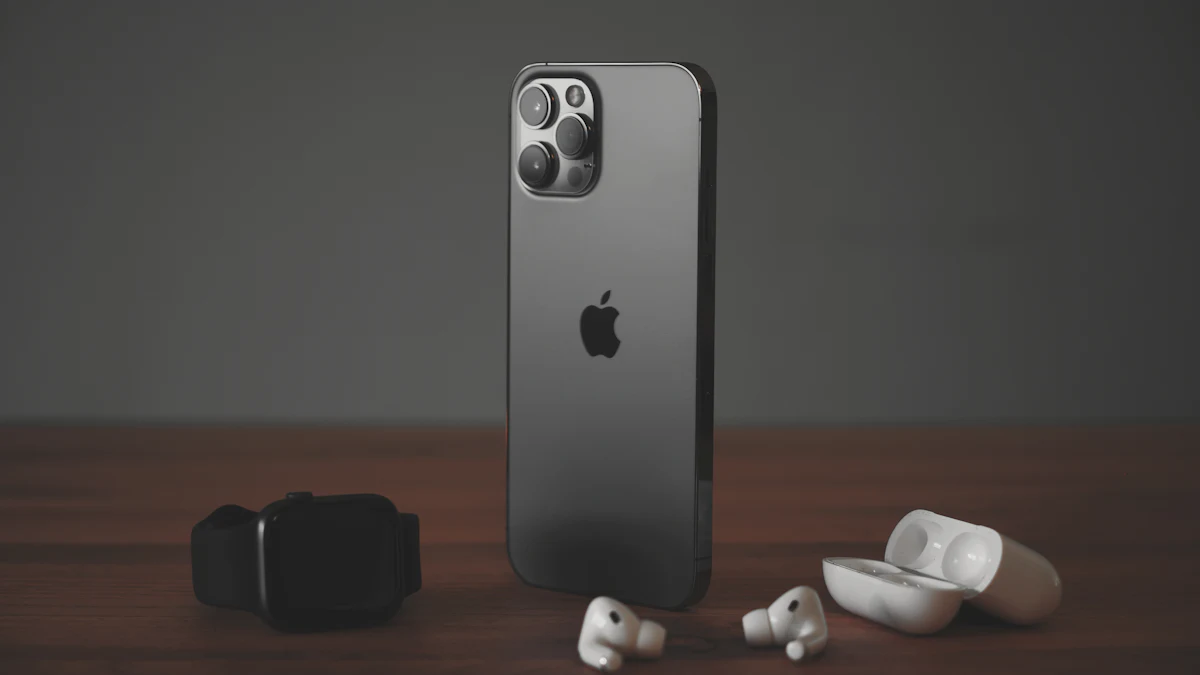
Switching from  Android to
 iPhone is much easier than it used to be. Apple's free Move to iOS app transfers most of your stuff in one go. Here's the full process, plus the bits people usually forget.
Before you start
- Charge both phones and plug them in during the transfer.
- Update your Android phone and check you have enough storage on the new iPhone.
- Note your passwords, especially your Google account and any banking apps.
- Install Move to iOS from the Google Play Store on your Android phone.
- Don't set up the iPhone yet. The transfer happens during setup.
Step 1: Start the transfer
- Turn on your new iPhone and follow setup until you reach Apps & Data (or "Transfer Your Apps & Data").
- Choose From Android.
- The iPhone shows a code. Open Move to iOS on your Android phone and enter it.
- Choose what to transfer: contacts, messages, photos and videos, calendars, email accounts, WhatsApp and more.
- Leave both phones alone until it's finished. Big photo libraries can take a while.
Step 2: Move WhatsApp chats
WhatsApp is included in the Move to iOS transfer. When asked during the process, open WhatsApp on your Android phone, start the export and let it finish. Then install WhatsApp on the iPhone and sign in with the same phone number to pick up your chats.
Step 3: Transfer your SIM or eSIM
Recent iPhones in the US are eSIM only: there's no physical SIM tray. During setup, the iPhone can often transfer your number from your carrier directly. If not, your carrier's app or website can activate the eSIM.
Step 4: Turn off iMessage confusion
This is the part people forget. Once you're on iPhone, messages between iPhones go through iMessage (blue bubbles). That's great, but:
- Sign in to iMessage and FaceTime with your Apple Account (Settings → Messages and Settings → FaceTime).
- If you ever go back to Android, deregister your number from iMessage first, or texts from iPhone users can go missing.
Step 5: Bring your Google stuff along
You don't have to leave Google behind:
- Gmail, Google Calendar and Contacts can sync in iPhone's built-in apps (Settings → Mail → Accounts).
- Google Photos, Drive, Maps and YouTube all have excellent iPhone apps.
- Chrome syncs bookmarks and passwords, though a password manager is better. See 1Password vs Bitwarden.
Step 6: Set up iPhone essentials
- Face ID or Touch ID (Touch ID on the iPhone Duo)
- iCloud Backup, so your new phone is protected from day one
- Find My, in case it's lost or stolen
- Two-factor authentication on your Apple Account. See how to set up 2FA properly.
Things that work differently
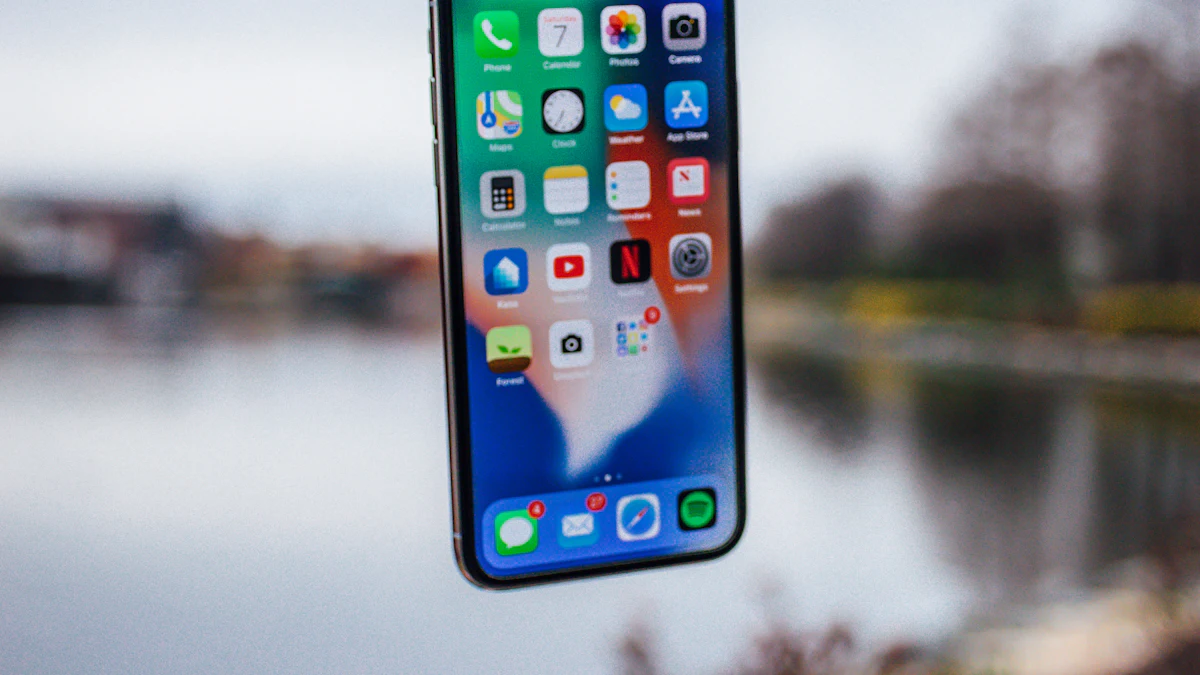
- No app drawer. Apps live on your home screens, and the App Library (swipe all the way left) holds the rest.
- Back gesture. Swipe from the left edge of the screen to go back in most apps.
- Default apps. You can set Chrome or Gmail as your default browser or mail app in Settings.
- Widgets and customization have come a long way. Long-press the home screen to explore.
Already picked your iPhone?
If not, see which iPhone to buy in 2026.